
How to Send TXT to Kindle and Embed a Custom Font
Import TXT as a Kindle-compatible ebook, optionally embed a TTF or OTF font, and check publisher-font support on the actual Kindle.
Bookify team · rainbend · Last updated
Quick answer
For ordinary TXT transfer, choose Kindle and Automatic, then import the TXT; Bookify prepares AZW3. To add a custom font, import a TTF or OTF, select it in settings and then import the TXT. Selecting that font on Kindle depends on its reading settings and firmware.
Transfer TXT without a custom font
Choose Kindle and leave Output Format on Automatic in Settings → Reading Optimization, then import your TXT from the bookshelf. Bookify prepares AZW3. Follow the wireless transfer steps to download it onto Kindle.
The font steps below are optional. You can complete a normal transfer first and customize a font later.
Prepare a sample book and font
Use your own DRM-free TXT, or choose Plain Text on the Project Gutenberg page for Pride and Prejudice, using a version you may download locally.
For a sample font, use EB Garamond from Google Fonts, or a TTF or OTF you are allowed to embed. Choose a font containing the characters in your book: a Latin-only font, for example, will not supply Chinese glyphs.
Import the font before the TXT
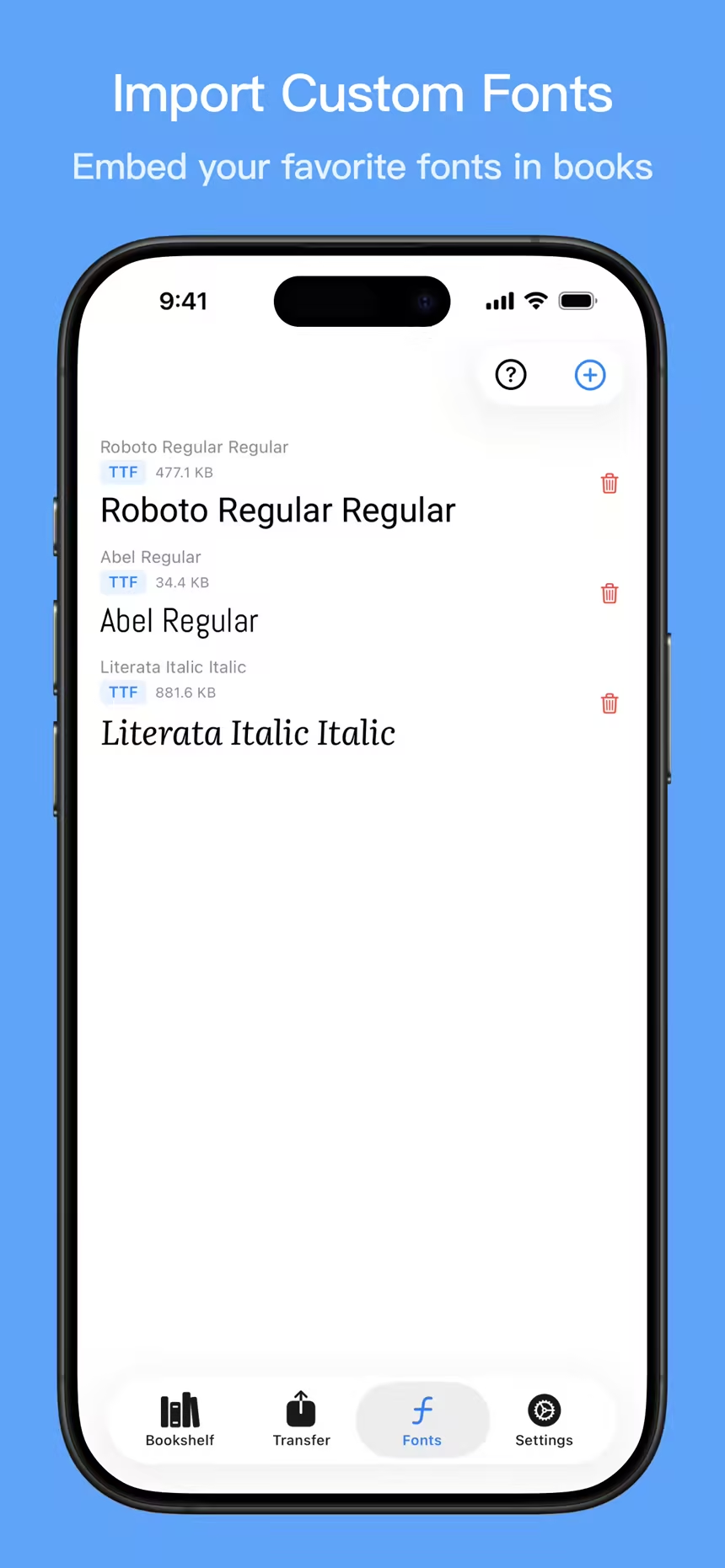
- In Bookify's Fonts tab, choose Import Font or the add button and select a
.ttfor.otffile. - Check that the font appears in the list. The image below shows the font-library interface.
- Select the font in Settings → Reading Optimization → Embed Font.
- Choose Kindle with Automatic or AZW3 output, not MOBI.
- Return to Bookshelf, import the TXT and wait for processing.
Transfer and check the Kindle font
Keep Bookify on Transfer and download the updated book using the Kindle browser. Open it, show the reading toolbar and check Aa → Font. If Publisher is available, select it and inspect the text.
Some firmware or book settings may not show that option. Use the actual device menu as the reference. A font being embedded in a file and the device allowing you to select it are separate results to check.
Add a font to an existing book
For a compatible AZW3 book, open the book menu, choose Embed Font and select an imported font. Transfer the updated book again after processing.
If the action is missing, check the format. For MOBI, keep the original TXT, choose AZW3 and your font in settings, and import again. Changing settings does not automatically reprocess an existing MOBI file.
Questions You May Have
Is font embedding required to transfer TXT?
No. It is optional. Import TXT with Kindle and Automatic selected for a standard transfer.
Can I embed a font after importing?
Compatible AZW3 books can offer Embed Font in the book menu. MOBI does not provide this custom-font workflow; import the original source again with AZW3 selected if needed.
Why can I not choose the font on Kindle?
Check that you downloaded the updated file and that the reading menu offers Publisher. Firmware may omit that option; an embedded font is not a guarantee that the device will let you select it.