
How to Send Books from iPhone to Kindle Without a Computer
Import a book on iPhone or iPad, connect over the same Wi-Fi, and download it in the Kindle browser using QR pairing or a local address.
Bookify team · rainbend · Last updated
Quick answer
You can transfer without a computer. Choose Kindle in Bookify, import your ebook, connect both devices to the same Wi-Fi, and download the prepared book in the Kindle browser. Keep Bookify on its Transfer screen until the download finishes.
What you need
- An iPhone or iPad with Bookify installed, and a Kindle with a working browser.
- A DRM-free ebook downloaded to your device.
- One Wi-Fi network that allows the two devices to communicate. Avoid guest networks.
This Bookify workflow covers iPhone, iPad and Mac. If you have an Android phone, start with the transfer method comparison.
1. Choose Kindle and import your book
- In Bookify, open Settings → Reading Optimization and select Kindle as the target reading device.
- Leave Output Format on Automatic for ordinary use.
- In Bookshelf, use the add button to import a book. You can also share the file to Bookify from Files, a messaging app or cloud storage.
- Wait until the imported book appears on the bookshelf.
If the file is still in a conversation or in cloud storage, follow the phone import guide first. Editing the title, author or cover is optional.
2. Open Transfer
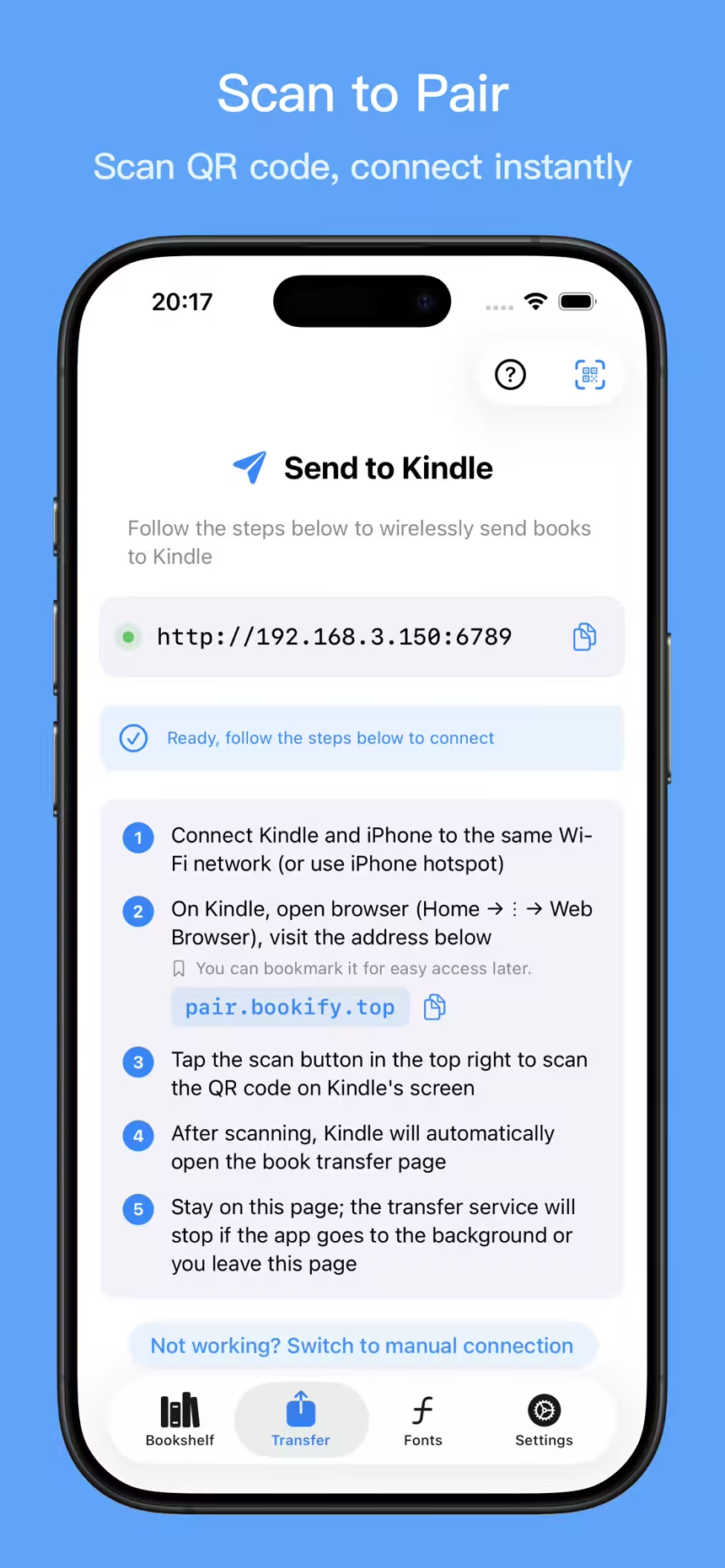
Connect your iPhone and Kindle to the same Wi-Fi and open Transfer in Bookify. Check that a local address is shown. Allow local network access if iOS asks for permission.
This is an example of the Transfer screen. Use the address and port shown on your own device, not the address in the screenshot.
3. Connect from the Kindle browser
QR pairing: Open pair.bookify.top in the Kindle browser. Tap the scan button in Bookify and scan the QR code displayed on the Kindle. Wait for the Kindle to open the transfer page.
Manual connection: If you cannot scan, switch to manual connection and enter the local address shown by Bookify in the Kindle browser. Include http:// and the port number. Pairing helps establish the connection; book files are downloaded from the phone's local transfer page.
4. Download and check the book
- Find the book on the Kindle transfer page and choose Download.
- Keep Bookify on the Transfer screen throughout the download.
- After the download finishes, return to the Kindle library and open the book. Check its text and table of contents.
Seeing the book in Bookify alone does not confirm a Kindle download. Once downloaded, you can read without keeping Bookify open. Local books are not added to the Amazon cloud library or automatically synced to other Kindle apps.
If something goes wrong
- The browser cannot connect, or QR pairing does not open the book list: use the connection troubleshooting guide.
- Import fails before transfer starts: check the original file using the import guide.
- The imported file has a different extension: see EPUB format handling.
Questions You May Have
Do I need a Kindle email address or Amazon account?
Bookify local transfer uses neither Kindle email nor Amazon Send to Kindle. Your Kindle still needs a working browser and access to the local network.
Does importing a book send it to Kindle automatically?
No. Importing prepares the book in Bookify. You then download it using the Kindle browser.
Can I use an iPad or Mac?
Yes. Choose Kindle, import the file and transfer on the same Wi-Fi. File selection and sharing menus differ by operating system.